About
About User Manual
Basic Concepts
Most websites are, fundamentally, a collection of webpages (containing content) grouped together under topic headings.
A visitor to the website finds their way to an individual webpage through some sort of menu or navigation.
The website that you will create and manage through madCMS follows this basic concept.
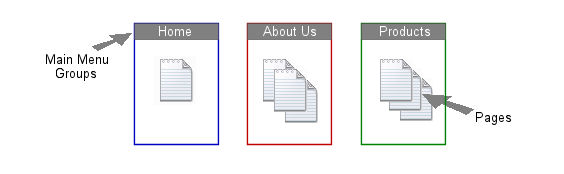
Your website's menu or navigation is built up by creating "Main Menu Groups" in madCMS. You then create "Pages" in madCMS and associate each page with a "Main Menu Group. Simple, huh?
It's important to understand that madCMS only manages the content of your website. How your live website appears on the internet (ie: colors, font styles, layout, etc) is known as the "look and feel" of your site. This "look and feel" is not controlled by madCMS, but by a "stylesheet" set up by yourself or the person who installed madCMS for you.
- Note: There are more complex and complicated content management systems that do allow you to change the "look and feel" of your live website through the administration interface - if you need that level of functionality, then madCMS isn't for you. Remember, however, once you have set up your website, you probably won't want to change the "look and feel" for quite a while. What you will want to do regularly is easily add and change content!
Main Menu Groups (your site navigation)
The menu on your website will be the primary way in which you site visitors will be guided to your content pages.
Usually, each of your Main Menu Groups will be a single topic under which you will associate related content Pages. For example, your site might have a Main Menu group called "Services" under which you will group several pages about the various services you provide.
Once you have created your Main Menu Groups in madCMS, the Main Menu will be automatically generated and displayed on your live website.
You can add, delete or re-name your site's Main Menu Groups any time. One thing to remember, however, is that if you delete a Main Menu Group that has Pages associated with it, you will "orphan" these pages - but more about that later.
Pages (your site content)
These are the reason for your website! The Pages contain the information you want your visitors to read, see or use.
The content of you Pages will typically consist of text and pictures, or links to other files you wish your visitors to download, or links to other relevant websites or Pages on your own site.
In madCMS, you can quickly and easily create a new Page and associate it with a Main Menu Group. The link to that Page will then automatically be generated and appear in a drop-down submenu under the respective Main Menu Group of your live website.
Pages can also be created and associated to a Main Menu Group, but flagged as "Hidden" pages. This allows you to work on a Draft of a new page but not have it showing up on the live website menu yet.
Quick Images
Everyone loves a picture, and you will probably want to have at least one image embedded in some of your Pages. The quckest and easiest way of doing this is using the "Quick Image" function in madCMS.
When you create or edit a Page you can upload a "Quick Image". Your image is uploaded, automatically reduced to a predetermined size, then embedded in your page content in a specific position on the page.
On the homepage of this website, you can see an example of a Quick Image displaying on the page.
Other Images and Files
Of course, you can also upload other images or files and add them into your page manually.
This is a two-step process: first you upload your files through the "Files Upload" admin screen, then insert or link these files into you page through the Page add/edit admin screen.
Not all files types are allowed to be uploaded, however, and the maximum file size is also limited.
- Note: For you to upload other images and files the "Files Upload" module must be turned on - if you don't see the "Files" tab on the madCMS Administration Homepage, then this module isn't turned on.
[More about uploading and inserting images...]
Manipulating Images
Apart from the basic re-sizing of a "Quick Image", madCMS doesn't manipulate or change your images.
If you are going to use a lot of images in your website, then you will probably need a basic image editor to crop or resize your images before uploading to your website. The raw photo files from you digital camera, or even photos you scan, will probably be quite large, so you will need to re-size these at least.
If you have commercial image manipulation tool such as Photoshop or Paint Shop Pro, excellent. If not, check out this open-source alternative: Gimp.
Other madCMS Functionality
Depending on how madCMS has been installed for you website, you may see other modules such as "News" or "Events". These modules, essentially, provide a simple way of creating special types of pages such as News items or Events Lists.
Planning your Website
After you get to grips with the basics of madCMS as described above, you may be tempted to get stuck into it and start creating your website. There's nothing wrong with that, but remember that the difference between a good website and a bad one is often just taking the time to do some initial planning!
1. Be mindful that your audience may have difficulty with certain colours or font styles.
Thoughts...
My strange behaviour as a child is easily explained - I was training to become a strange adult. (Ashley Brilliant)